

MC JEFFERSON AGLORO
is currently vocal performance undergraduate at American River College who plans to transfer to Sacramento State University to earn his Bachelors in vocal performance and music education. He is an accomplished baritone and a pianist active in both vocal and instrumental ensembles at ARC and in the community. Born and raised in the Philippines, music has been an integral part of his life and his passion. His goals are to be able teach music of any level either through piano or voice lessons and be able perform as an opera singer. By doing so he strives to help convince people and aspiring musicians to learn the language of music and deepen their appreciation for the arts.
teaching private music lessons online
Like many teachers and music instructors, I have been thinking of ways how to be better at teaching music online.
What are the best tools to utilize in order to facilitate connection, dialogue, and music experience?
What strategies work best in online teaching?
What assignments will foster music-learning, especially during this time?
As we try our best to navigate the territory of learning how to teach online due to the COVID-19 pandemic, I thought I’d make compilation of things I have learned through the internet that helped me and possibly you to teach music virtually.
If you teach in a community setting, wether in a community music school or a private studio, here are a few creative ways and approaches to teaching and fostering music-learning during this time:
Private lessons
Teach live video sessions using Zoom, Skype, or Facetime
Give asynchronous assignments for students to complete on their own during the week. Record feedback and demonstration in place of a written assignment sheet.
Offer pre-recorded lesson kits with a warm-up exercise, a rhythm game, a playback/clapback activity, an introduction to a new piece, a recording to practice with, etc. For young piano students, I recommend the Wunderkeys Primer series. Each chapter includes a story, a new musical concept, practice exercises, a few short pieces, and a game or two that students can play at home.
Give rhythm and sight-reading assignments through Sight-Reading Factory (free student accounts through the end of the school year for any school with closure).
Share your screen using Zoom and make annotations on a PDF copy of the music. Use different colors to mark intervals, dynamics, form, repeated patterns. etc. This is my personal favorite. You can even screen share your iPad or Tablet’s screen if you decided you want to use your stylus or apple pen for annotating PDFs. I like to use a note-taking app called Good Notes for scribbling on PDFs.
Send home a challenge for your students to make and share music with others during this time. Encourage them to record their own videos at home (by themselves or with family members) and share with friends and family via text, social media, or email.
Tech tools:
Here is a round-up of tech tools that I use and think are useful for online teaching at different levels:
VIDEO
FaceTime: Free video chat tool available on any iOS device with a forward-facing camera and any Mac computer with a FaceTime camera.
Facebook Live, YouTube Live, Twitch: Live-streaming through social media platforms.
Zoom: A free video conference software or app for Mac and PC and available on smartphones like iOS and Android as well. (40-minute limit for groups of three or more on the free Basic plan, waived right now for K-12 educators).
QuickTime: A free tool for making video, audio, or screenshare recordings.
Loom: A free tool for making video or screenshare recordings.
FlipGrid: Social media meets education. A short video exchange platform that’s free for educators.
Acapella: A multitrack tool for creating multi-frame music videos. Free in the App Store.
Google Hangouts: Free video chat for anyone in the U.S. or Canada with a Google account.
HOW TO IMPROVE SOUND IN ZOOM
Login to your Zoom account on a computer or laptop. Look for these settings:
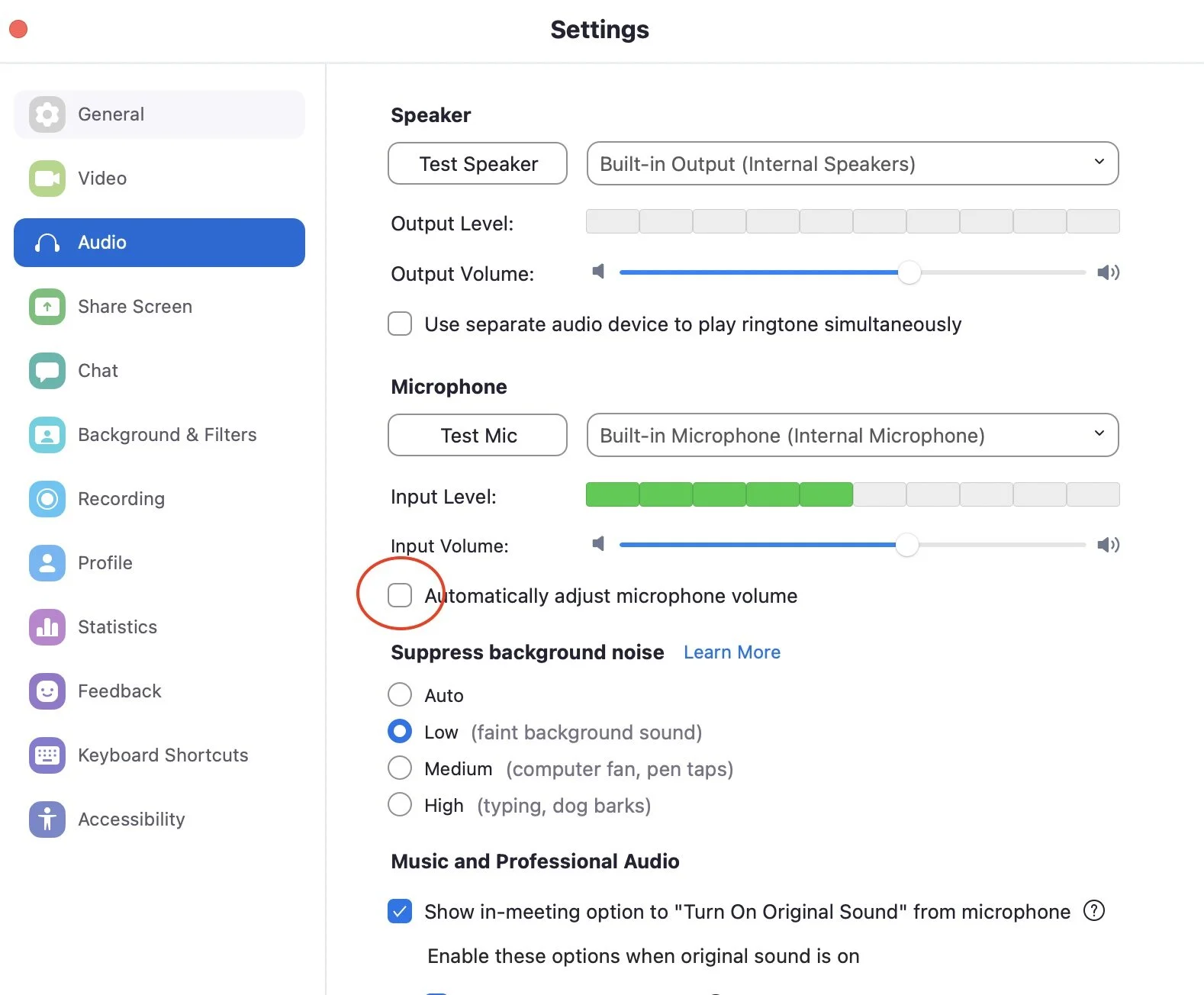
AUDIO SETTINGS
Under Microphone, make sure “Automatically adjust microphone volumes” is unchecked. This makes sure that everything will be heard and that zoom will not play with your microphone volume is it could be distracting when singing or playing an instrument.
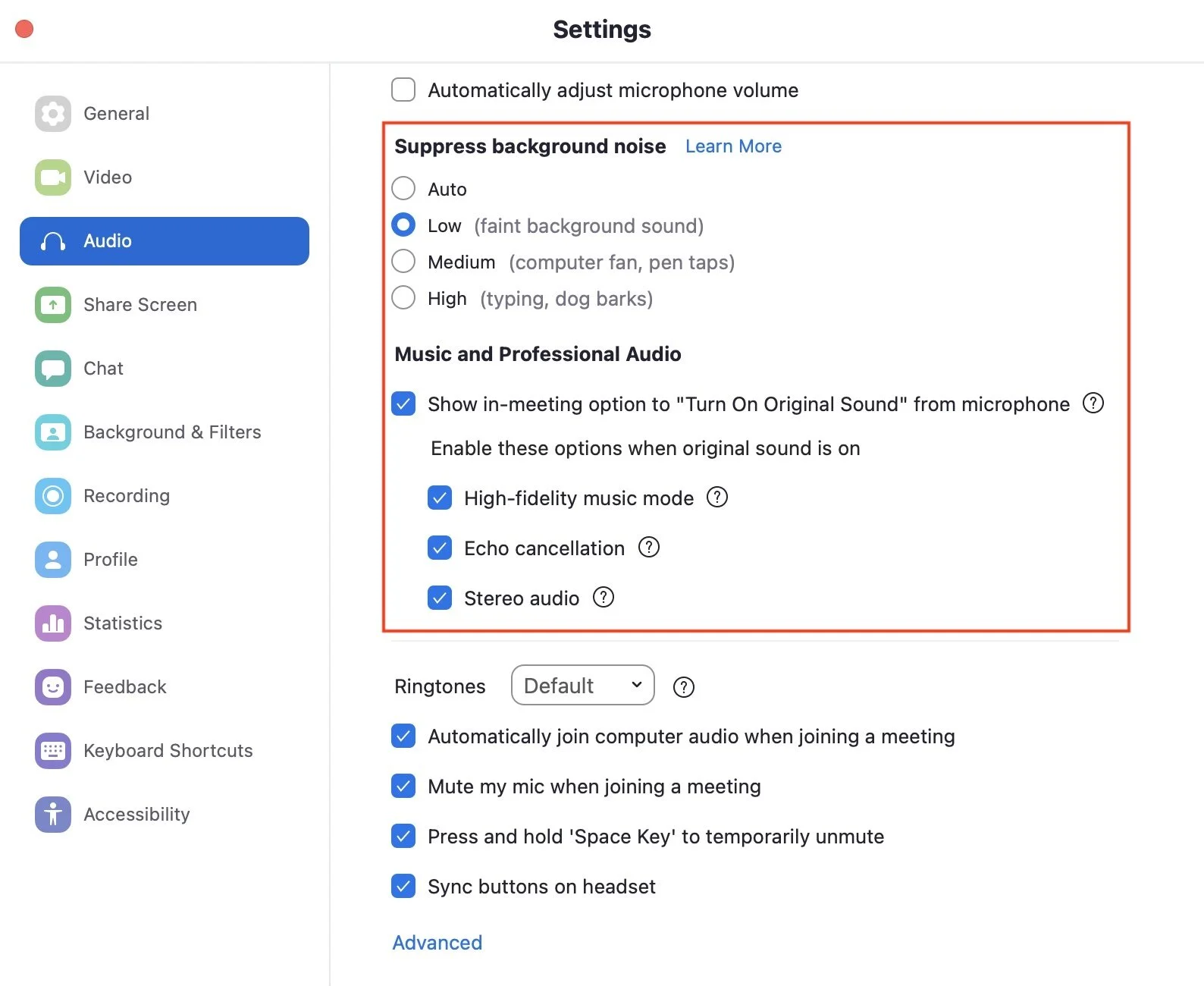
AUDIO SETTINGS (ADVANCED)
Make sure “Suppress background noise” is set to lowest possible setting which is low. This will prevent the sound to cut off when playing or singing with varying dynamics. And make sure to check all the options under “Music and Professional Audio” for the best audio quality. Under “Advance” at the bottom, make sure “Echo Cancellation” is set to AUTO.
AUDIO
Discord: Free voice chat tool. A place with plenty of room to talk.
QuickTime: A software by apple for making video, audio, or recording screen.
Blue Yeti Microphone: My favorite microphone for recording directly into my MacBook. It doesn’t need an audio interface, which for my teachers out there who aren’t as familiar with audio equipments, this USB microphone is your best bet. I use it for recording spoken directions as well as playing demonstrations.
FILE SHARING
Google Drive: Free digital file-storage system (documents, spreadsheets, video files, images, audio files, forms, slides) for anyone with a Google account.
Your iPhone: Did you know you can scan documents in the Notes app? Open a new note, click the camera icon, and scan. Then, share the document via email or text.
Dropbox: Free digital file-storage system (documents, spreadsheets, video files, images, audio files, forms, slides).
Google Classroom: A free platform for organizing learning content, giving assignments, and tracking student work.
Seesaw: A free, interactive, cloud-based learning portfolio. Teachers create content and activities and students can take pictures, draw, and record videos of their work.
MUSIC NOTATION
NoteFlight: An online, browser-based music-writing application.
Flat.io: A free cloud-based music notation software (look for the add-on in Google Slides and add snippets of music notation into your presentations). Flat for Education is free through the end of the school year.
MUSIC-LEARNING
Virtual Boomwackers: a free web-based tool for playing (and hearing!) Boomwhacker sounds. Available in a diatonic or chromatic scale.
Musictheory.net: A free resource for creating note-naming drills, interval quizzes, and more.
Google Chrome Music Lab: A free web-based application for experimenting with rhythm and melody, pairing visual art with sound (Kandinsky), discovering arpeggios (a great exploration of harmony and the Circle of 5ths), and creating your own songs. In Song-Maker, students can save their work and share it using a unique link.
Musicfirst.com: A learning management system for K-12 music education. Free for any school with closure.
QuaverMusic: Music education curriculum resources for PreK-8th grade. Free access to general music activities (including free student access at home) for all impacted schools.
Sight-Reading Factory: An online sight-reading generator with customizable levels, musical components, note values, rests, etc. tailored to your students. Free student accounts through the end of the school year for any school with closure.
SmartMusic: Music-learning software for educators and students.
Source: https://tinyurl.com/vp7836hc and ashleydanyew.com